Aimi is your AI-powered scheduling assistant that lives right inside WhatsApp. It handles appointment bookings, sends reminders, and manages your calendar -- all through natural conversation with your customers.
To make this work, Aimi needs to connect to your WhatsApp Business number. Don't worry -- the process is quick, secure, and powered by Meta's official Embedded Signup flow. You'll be up and running in just a few minutes.
What You'll Need
Before getting started, make sure you have the following ready:
- A Meta (Facebook) account -- This is used to authenticate with Meta's systems. If you already use Facebook or Instagram for your business, you likely have one.
- A WhatsApp Business phone number -- The number your customers already use to reach you on WhatsApp Business. This can be the same number you currently use with the WhatsApp Business app.
- Access to your Aimi account -- You'll need to be logged in to the Aimi dashboard where you'll start the connection process.
Don't have a Meta Business account yet? No problem -- the Embedded Signup flow can help you create one as part of the process.
Step-by-Step Guide
Follow these steps to connect your WhatsApp Business number to Aimi. The entire process typically takes less than five minutes.
Start the Embedded Signup
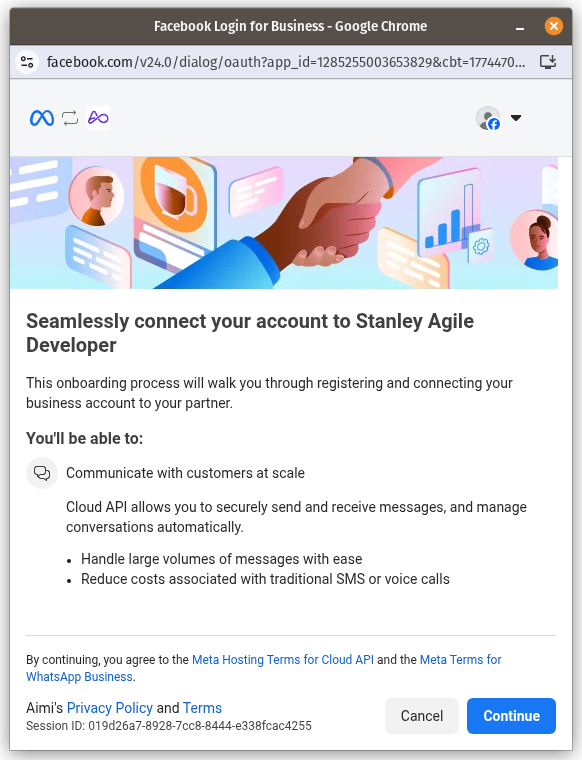
From your Aimi dashboard, click the "Continue with Facebook" button to begin. A new popup window will open showing Meta's Embedded Signup welcome screen. You'll see a summary of what the connection enables -- communicating with customers at scale, handling large message volumes, and reducing SMS costs. Click Continue to proceed.
Select Your Business Assets
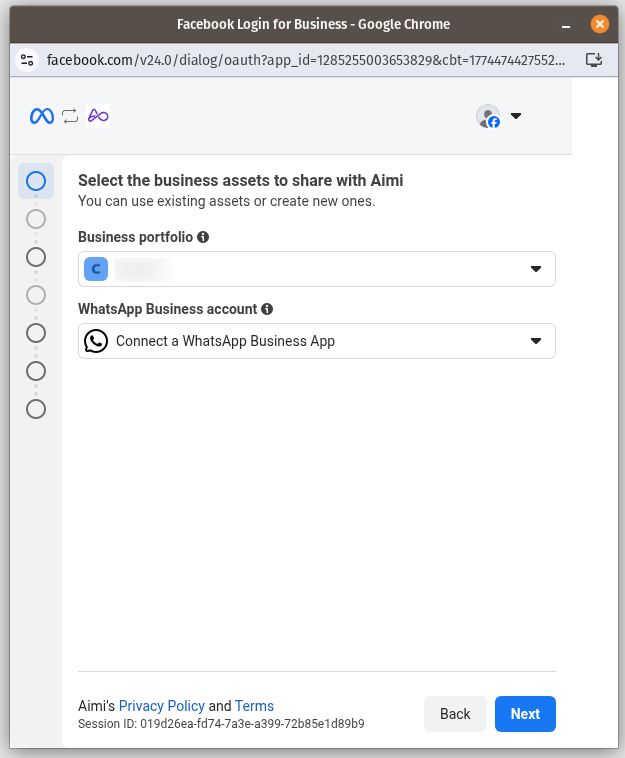
After logging in with your Meta account, you'll be asked to select the business assets to share with Aimi. Choose your Business portfolio from the dropdown, then select your WhatsApp Business account. If you don't have a WhatsApp Business account yet, you can create a new one by selecting "Connect a WhatsApp Business App". Click Next to continue.
Enter Your WhatsApp Business Phone Number
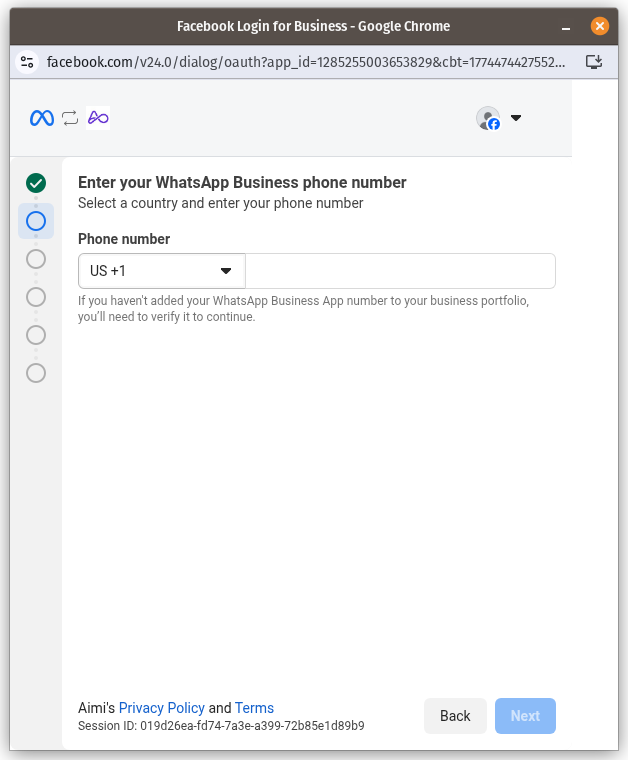
Select your country code from the dropdown and enter your WhatsApp Business phone number. This is the number your customers already use to reach you. If you haven't added this number to your business portfolio yet, you'll need to verify it to continue.
Connect Your Existing WhatsApp Business App
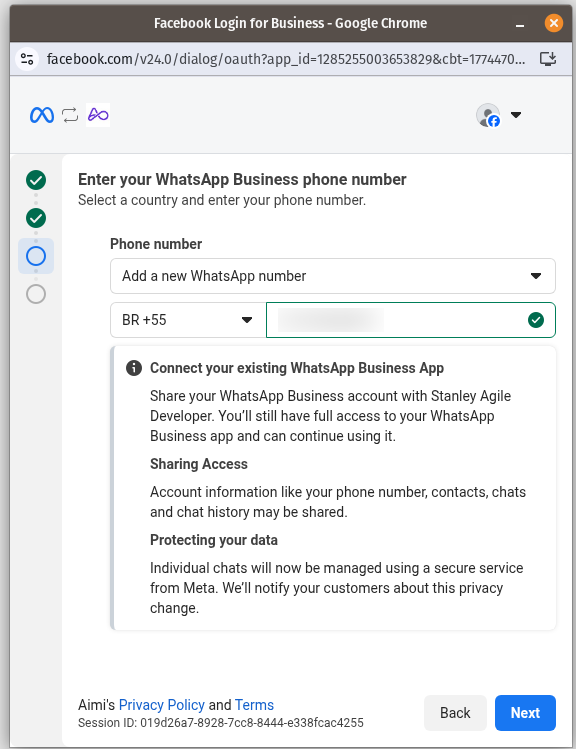
Once your number is verified, you'll see details about connecting your existing WhatsApp Business App. This screen confirms that you'll still have full access to your WhatsApp Business app and can continue using it normally. It also explains what data will be shared (account info, contacts, chats) and how your data is protected. Click Next to proceed.
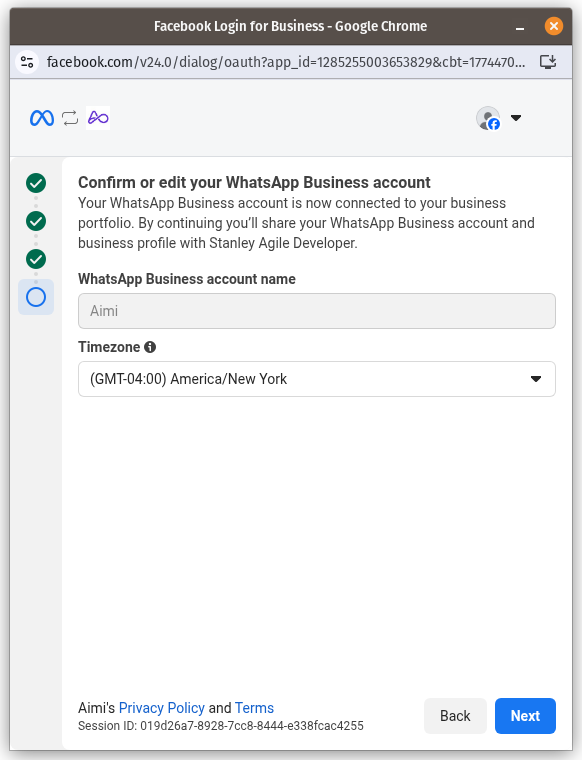
Confirm Your WhatsApp Business Account
Review and edit your WhatsApp Business account name and timezone. Your account is now connected to your business portfolio. Make sure the timezone matches your business location so that appointment scheduling works correctly. Click Next when everything looks good.
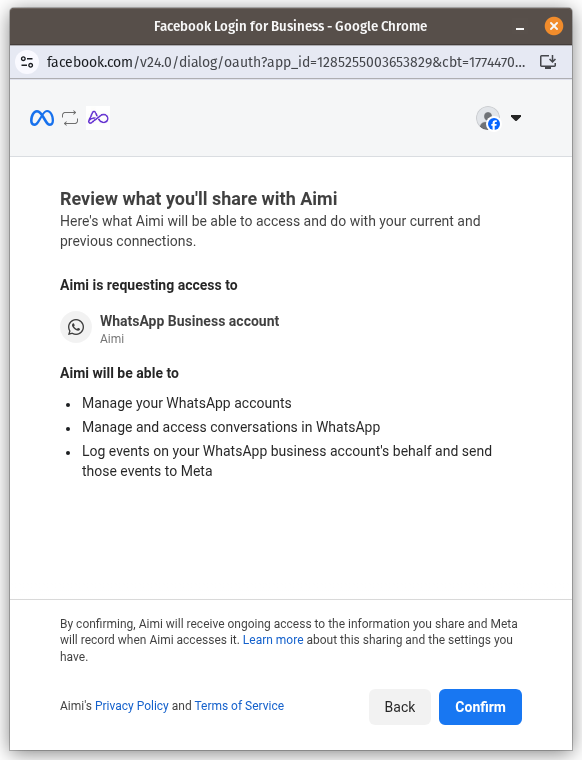
Review Permissions and Confirm
Finally, review what you'll share with Aimi. You'll see a summary of the permissions Aimi is requesting -- managing your WhatsApp accounts, accessing conversations, and logging events. Click Confirm to finalize the connection. The popup will close, and you'll be taken back to your Aimi dashboard where your WhatsApp number is now connected. That's it -- Aimi is ready to start handling appointments on your behalf!
What About My Existing WhatsApp?
This is one of the most common questions we hear, and the answer is reassuring: connecting your WhatsApp Business number through Aimi does not disconnect or affect your existing WhatsApp Business app in any way.
Here's what you should know:
- Your WhatsApp Business app continues to work normally. You can still send and receive messages, update your business profile, and use all the features you're used to.
- Aimi works alongside your WhatsApp Business app, not instead of it. Think of Aimi as a helpful assistant that handles scheduling conversations while you focus on running your business.
- Your existing chats, contacts, and message history remain untouched. Nothing is deleted or moved.
- You stay in full control. You can disconnect Aimi from your WhatsApp Business number at any time from your Aimi dashboard.
Frequently Asked Questions
Is my existing WhatsApp safe?
Absolutely. Connecting to Aimi uses Meta's official API and does not interfere with your WhatsApp Business app. Your personal WhatsApp (if separate) is completely unaffected. Aimi only accesses the business number you explicitly choose to connect.
What happens if the connection fails?
If something goes wrong during the Embedded Signup flow, don't worry. Simply close the popup window and try again from your Aimi dashboard. Common reasons for issues include browser popup blockers or using an outdated browser. If you continue to experience problems, our support team is happy to help at [email protected].
Do I need a Meta Business account?
Yes, but if you don't have one yet, the Embedded Signup flow will guide you through creating one. It only takes a couple of extra minutes.
Can I connect more than one WhatsApp number?
Currently, Aimi supports connecting one WhatsApp Business number per account. We're working on multi-number support for businesses with multiple locations -- stay tuned for updates!
Will my customers notice any difference?
Your customers will still message the same WhatsApp number they already know. The only difference is that Aimi will respond to scheduling-related messages automatically, making the experience faster and more convenient for everyone.
Can I disconnect Aimi later?
Yes. You can disconnect your WhatsApp Business number from Aimi at any time through your dashboard settings. Your WhatsApp Business app will continue to work as it always has.
Ready to Get Started?
Connecting your WhatsApp Business number to Aimi takes just a few minutes and can save you hours every week. If you haven't signed up yet, create your free account and follow the steps above.